📱 Order Receiving Application: Installation and Setup (Android)🔗
If necessary, the file can also be requested from technical support:
help@ru-beacon.ru or https://t.me/RBCNbot
In addition to this application, you can also receive order notifications via email and Telegram. Contact us if you need these settings enabled.
🔧 Installation🔗
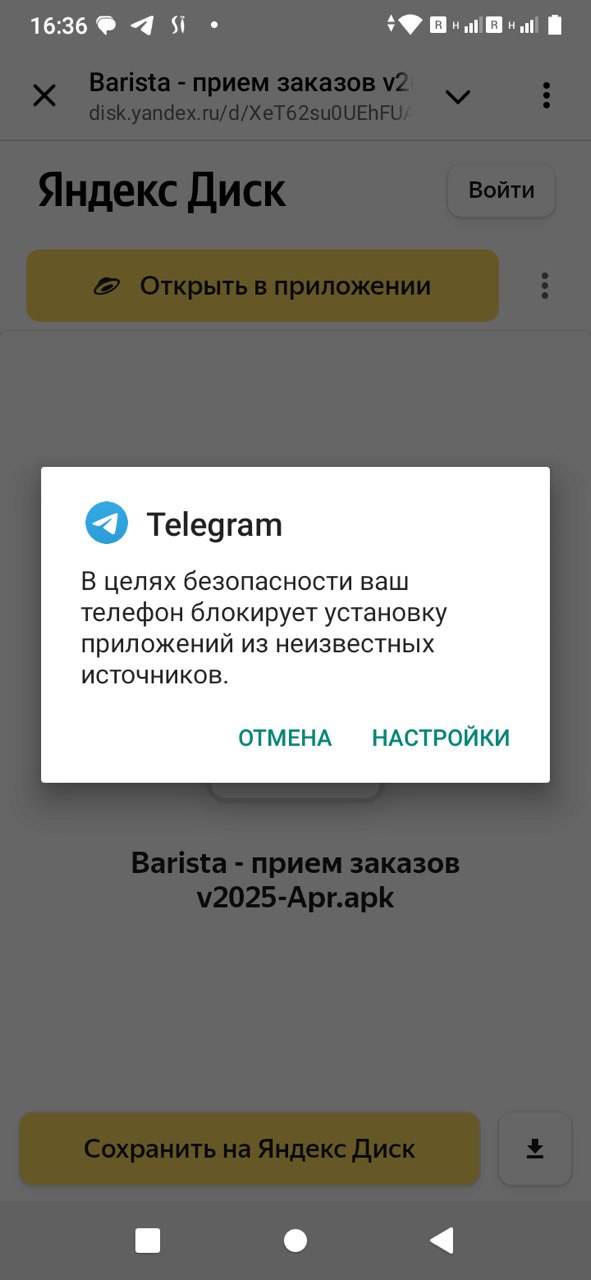
When downloading the file, Android may ask whether you trust the source and want to proceed with installation — confirm and continue.
After installation, we recommend restoring the security settings.
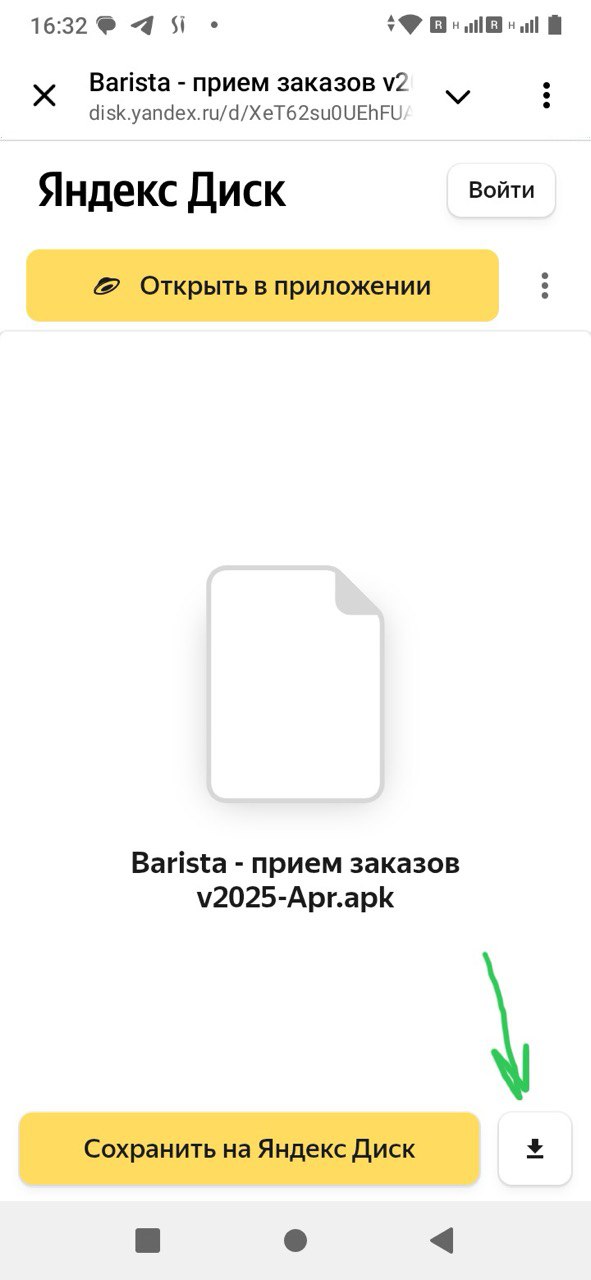
1 - Open the Yandex.Disk link
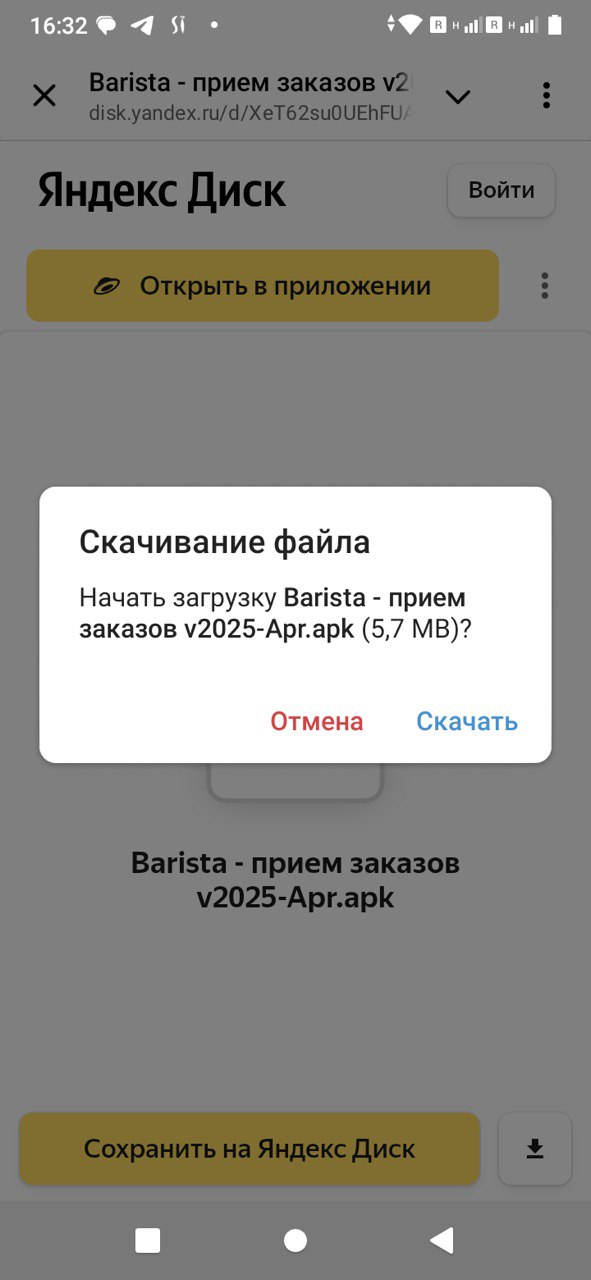
2 - Download the file
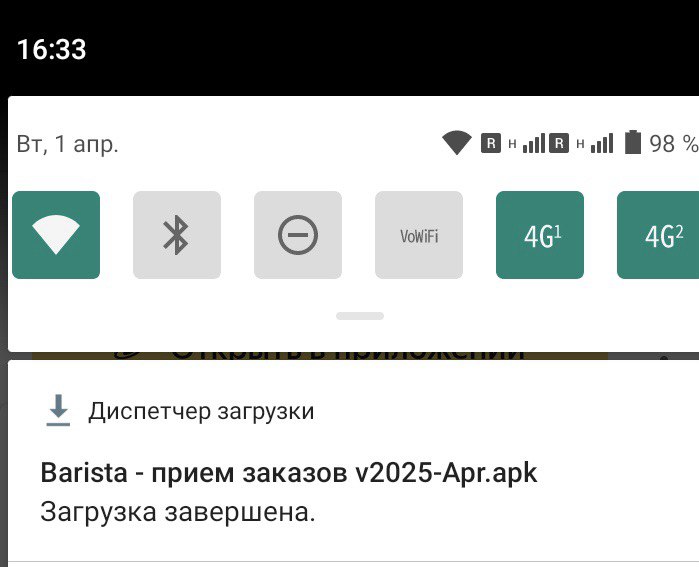
3 - Locate and open the file on your device
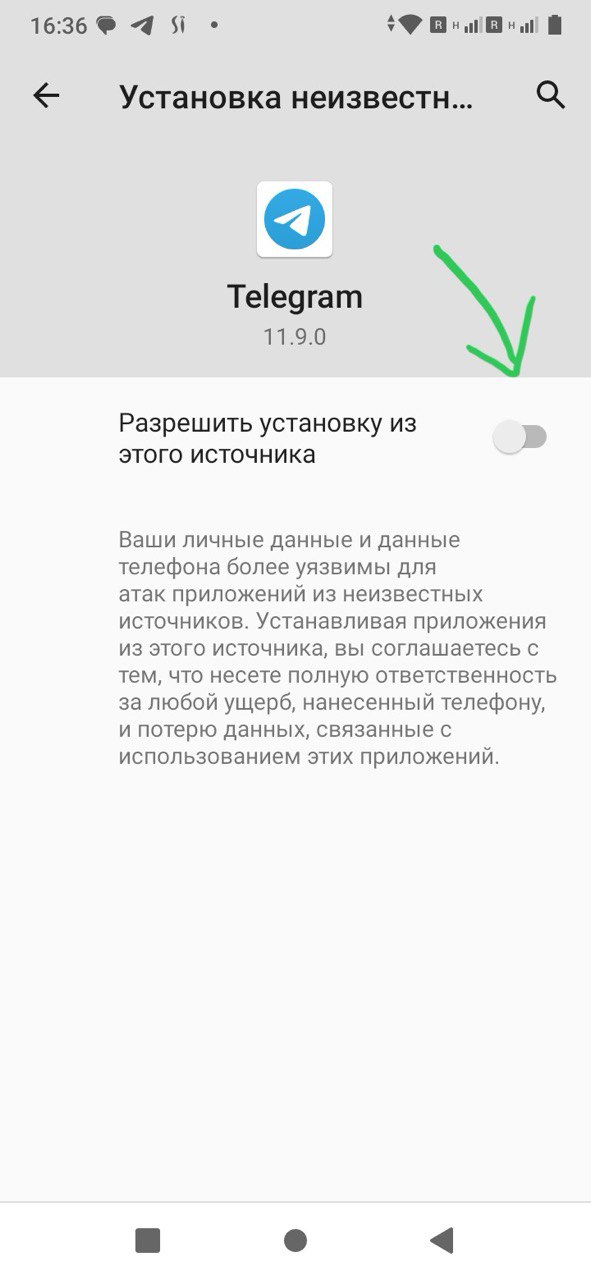
4 - During installation, a notification may appear asking whether to trust the source. Confirm and allow installation in the settings.
5 - Enable the “Allow” option. After installation, we recommend disabling it again.
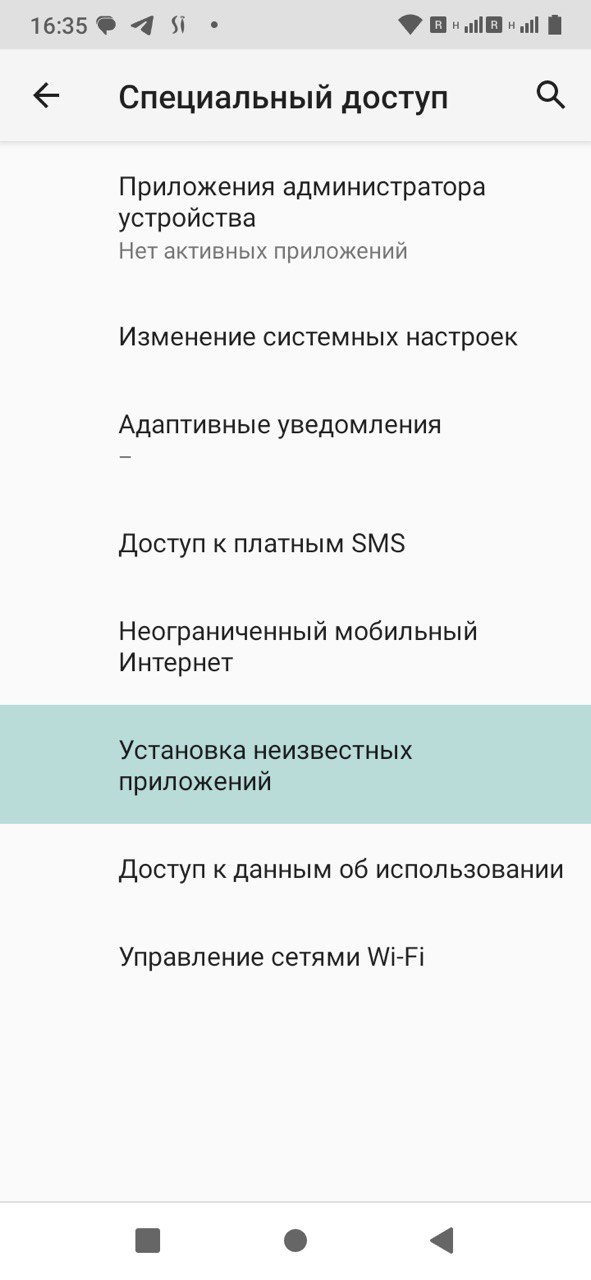
6 - You can restore the original settings in the section “Special access” → “Install unknown apps”
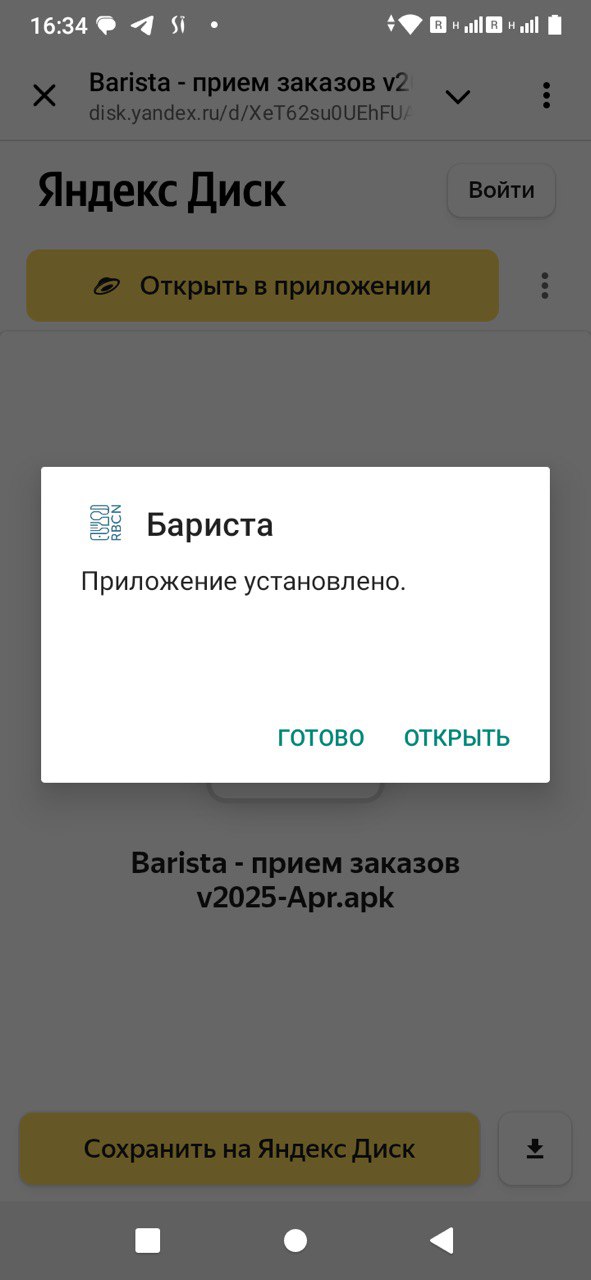
Done! The application is installed.
The login and password will be provided by the responsible manager.
⚠️ Important🔗
Not all Android devices work the same way.
Sometimes the system may remove the application from memory to save battery or data usage, and you may not receive order notifications.
To prevent this, please check the following 4 sections:
- Battery
- Notifications
- Data usage restrictions
- Display and brightness
🔋 1. Battery🔗
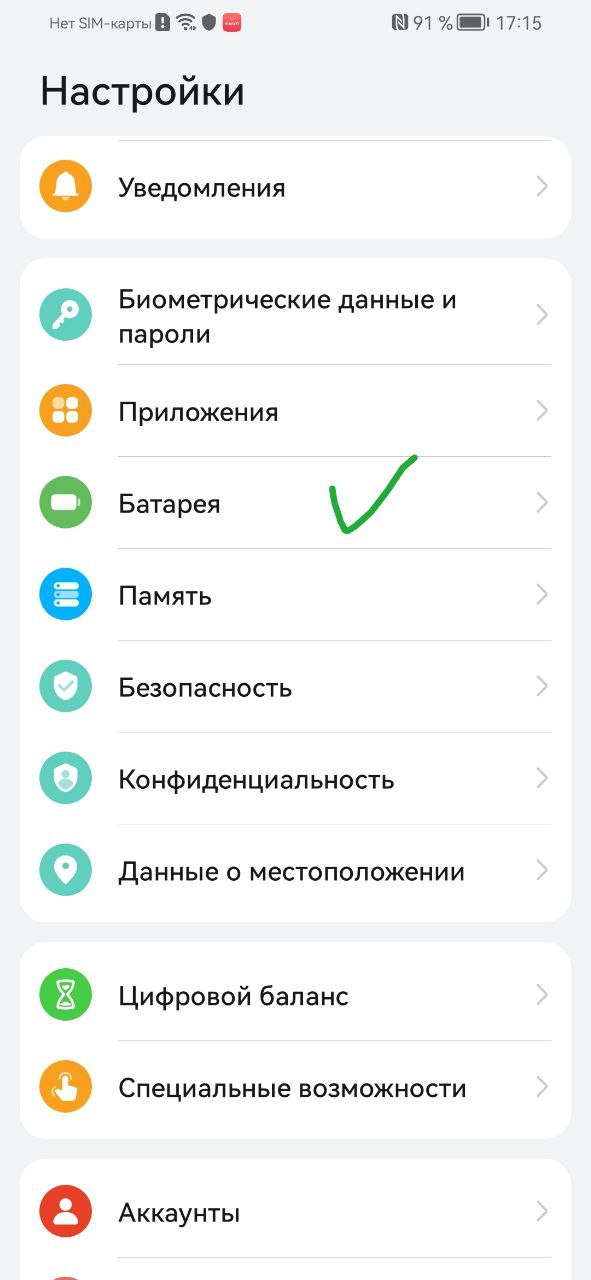
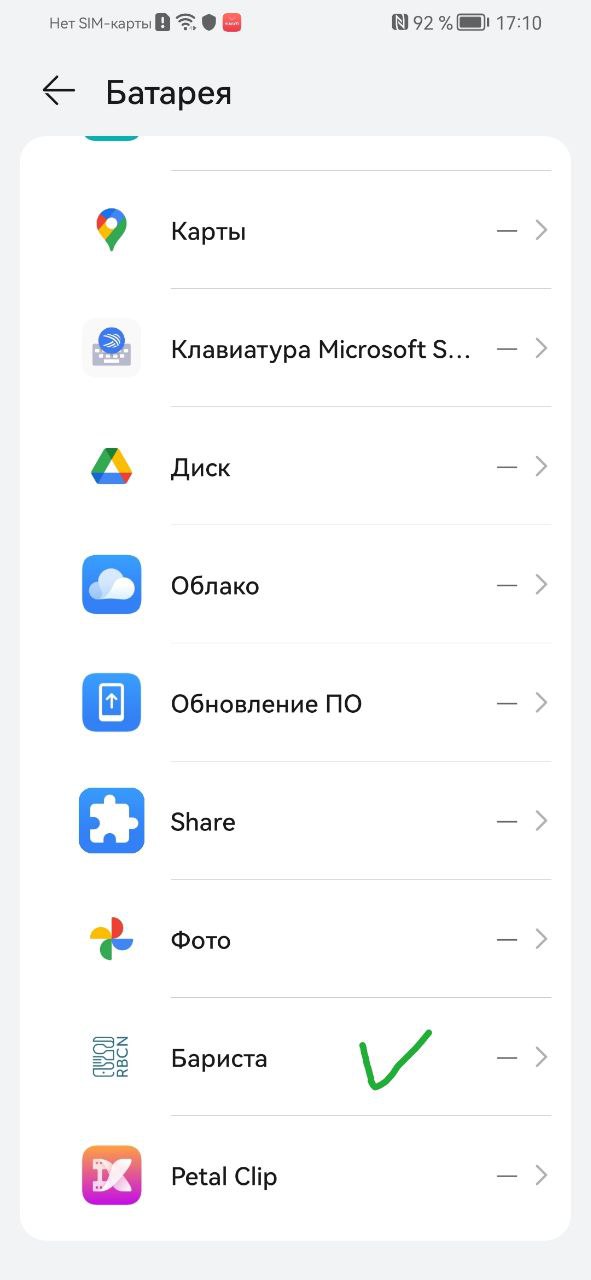
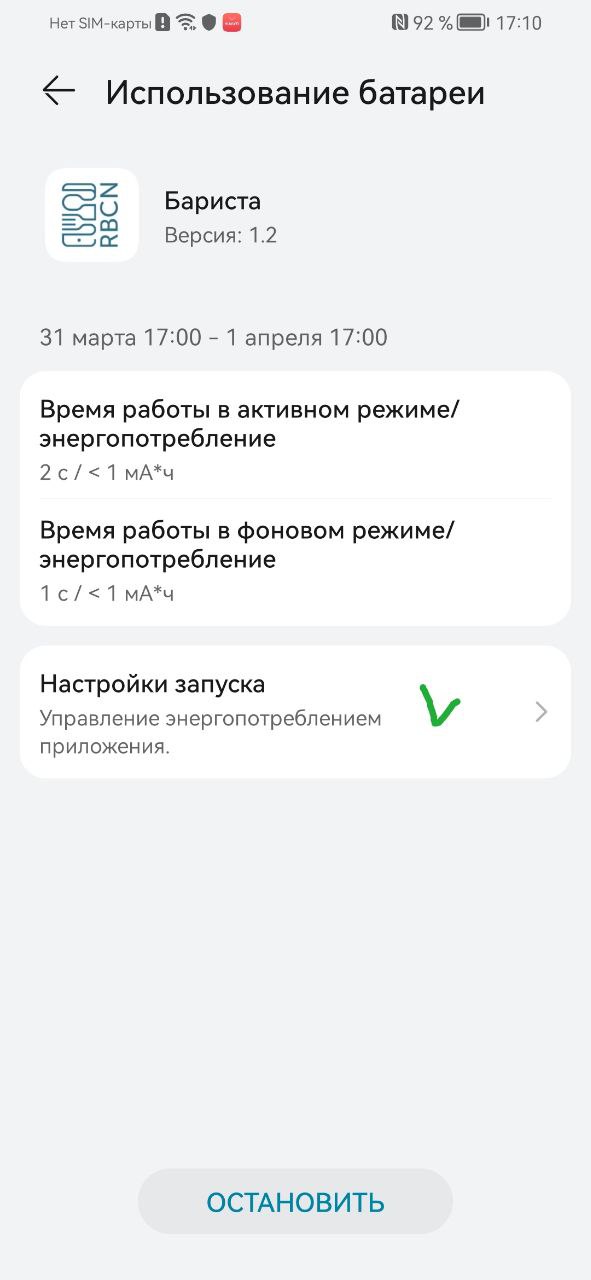
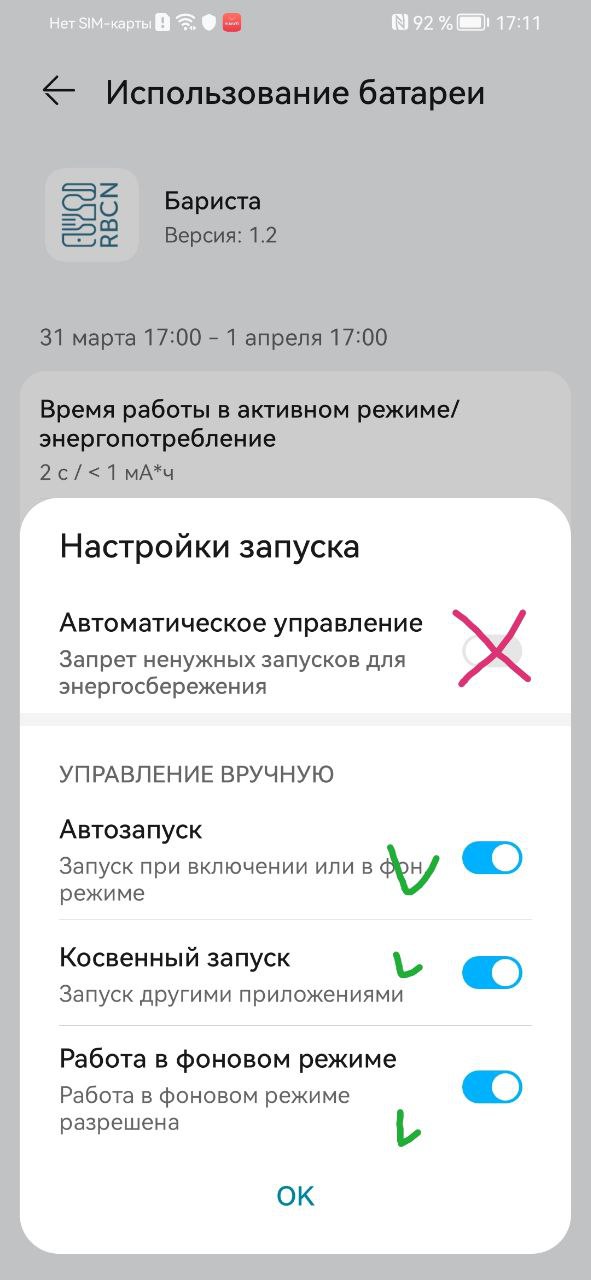
- Settings → “Battery” (sometimes located under “Memory”)
- Select “Barista” from the list of applications
- Open the application settings
- Make sure background activity is enabled and no power-saving or restriction modes are active. Otherwise, some Android devices may remove the app from memory.
🔔 2. Notifications🔗
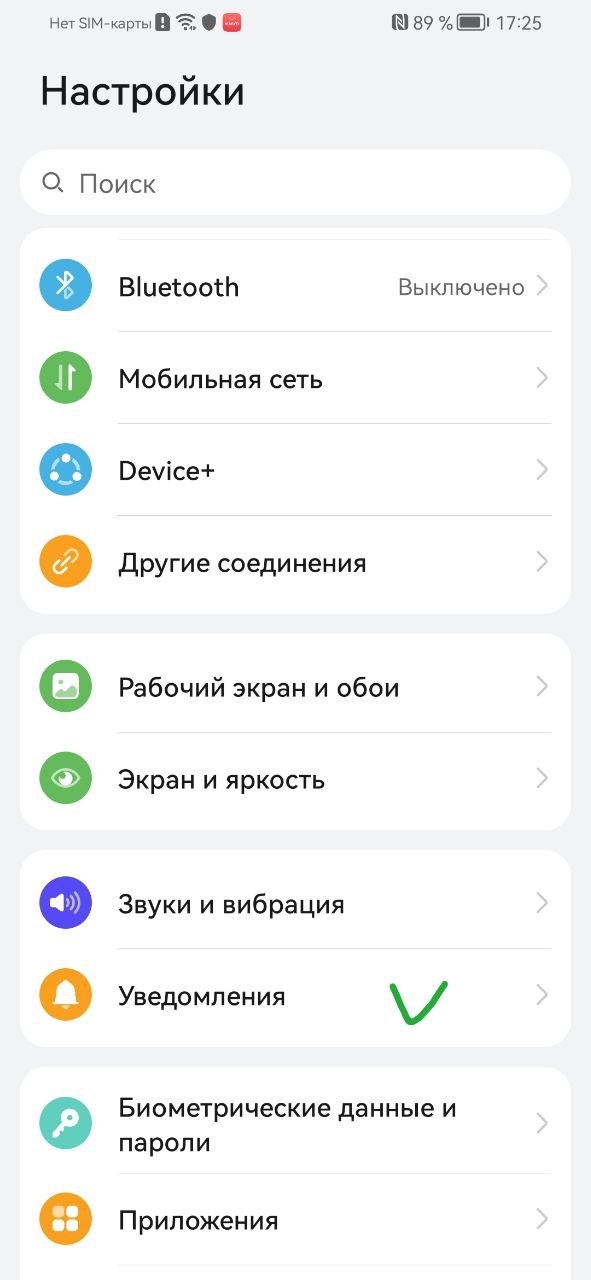
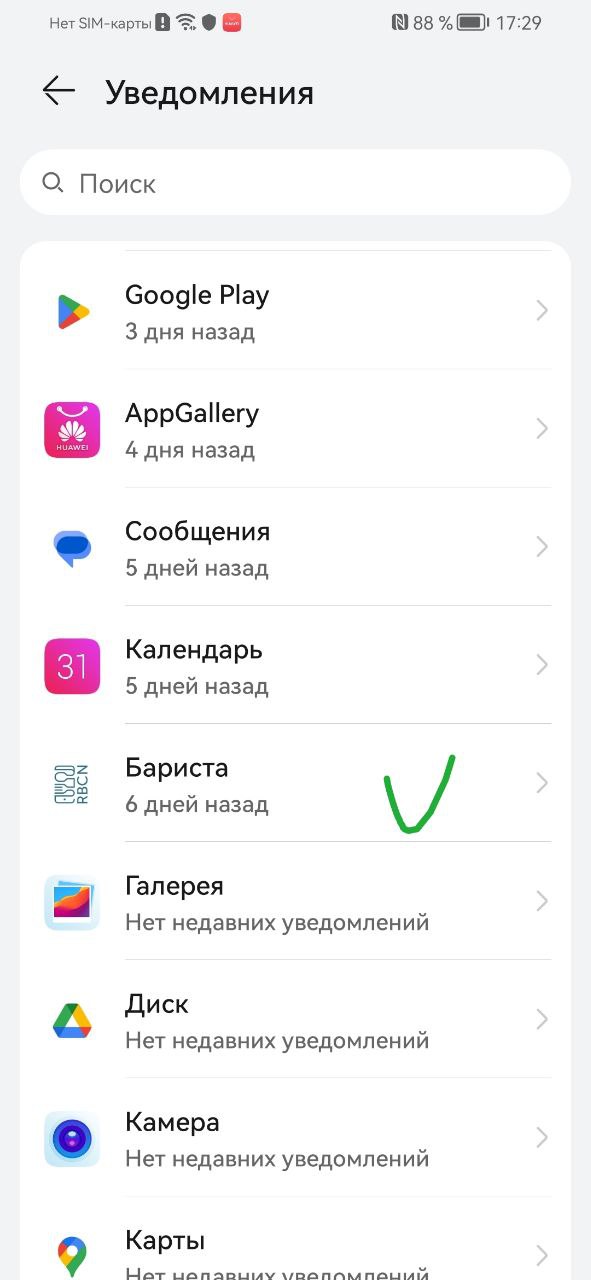
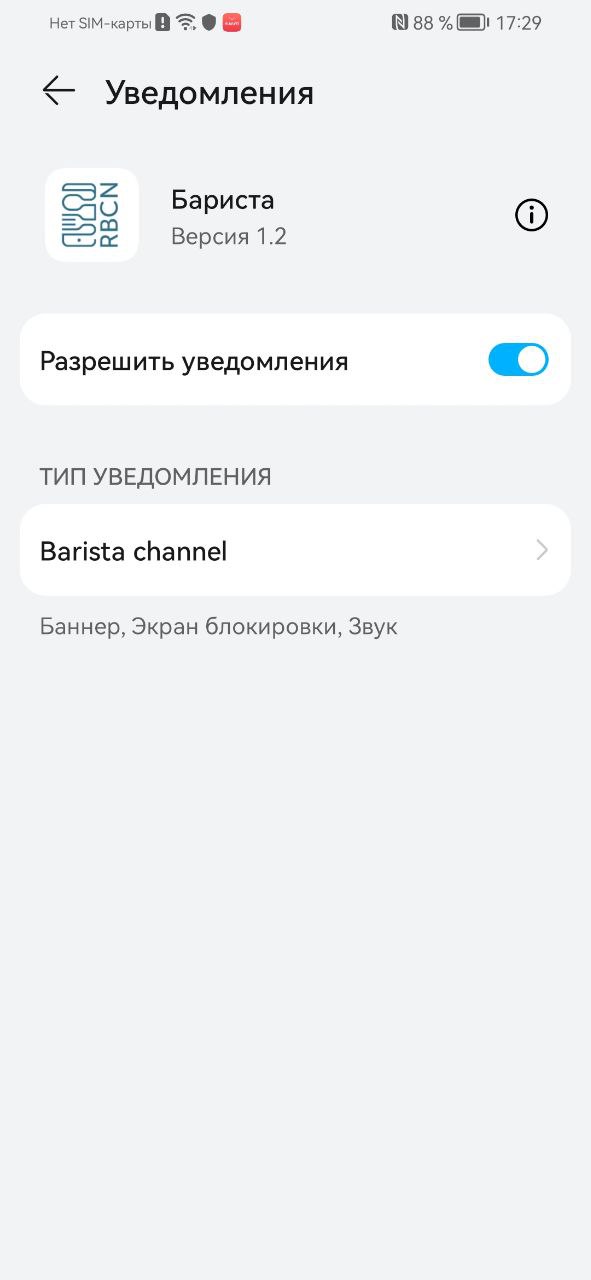
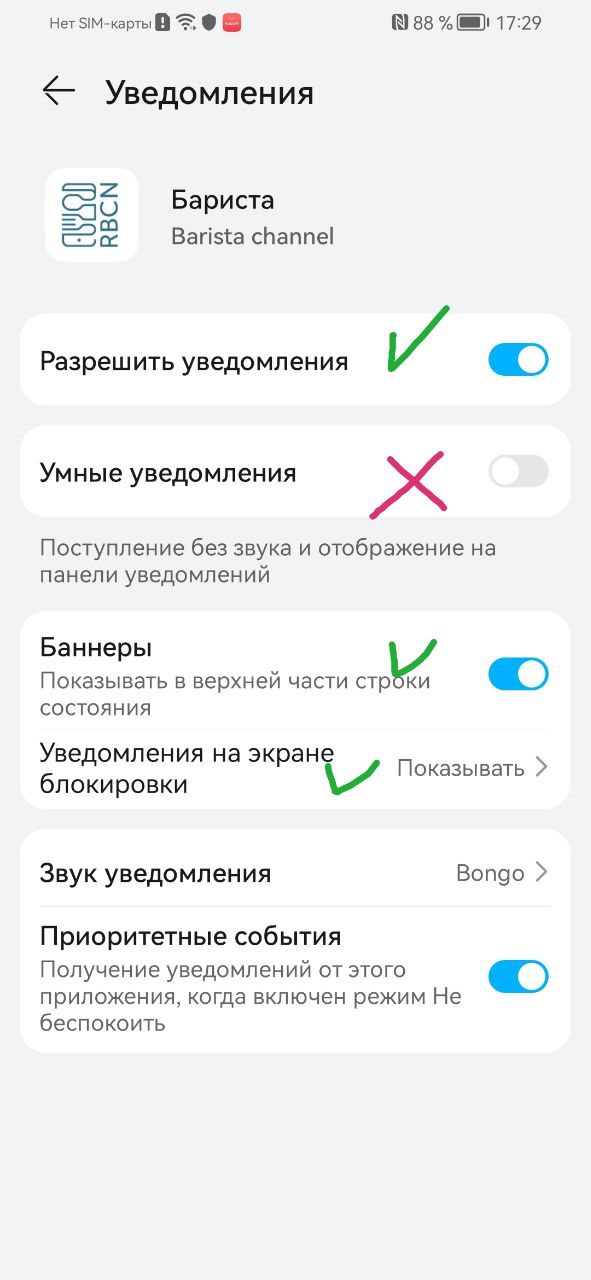
- Settings → “Notifications”
- Select “Barista” from the list
- Make sure notifications are enabled
- Ensure all notification settings indicate that alerts are active, visible, prioritized, and not limited by features such as “smart notifications”
🌐 3. Internet and data restrictions🔗
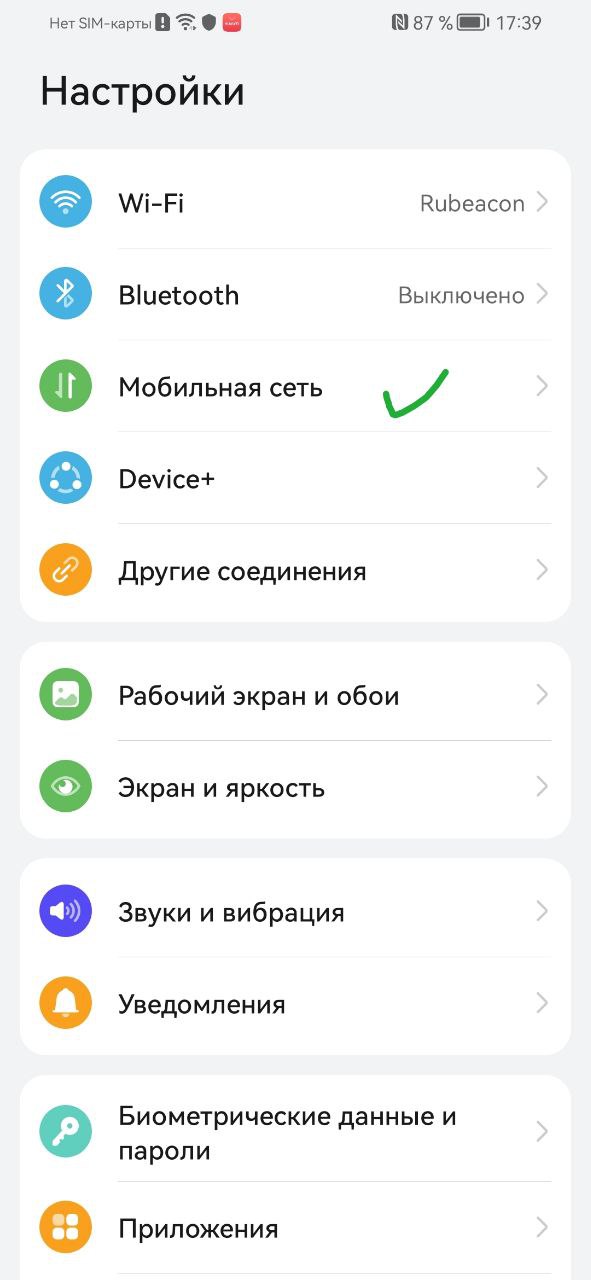
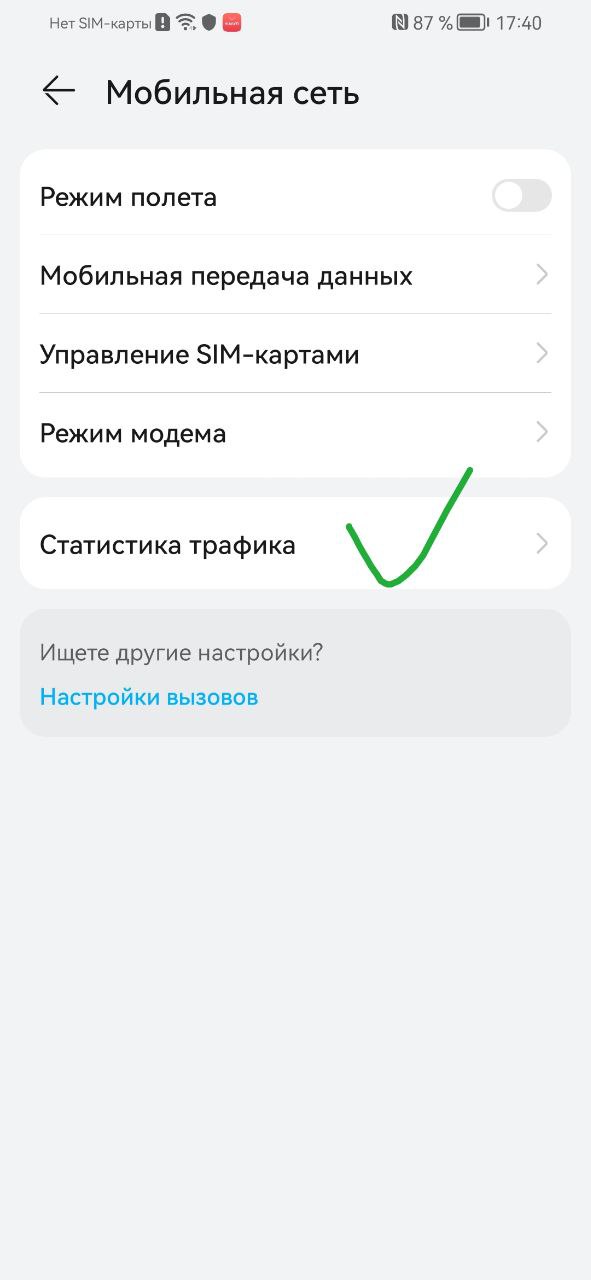
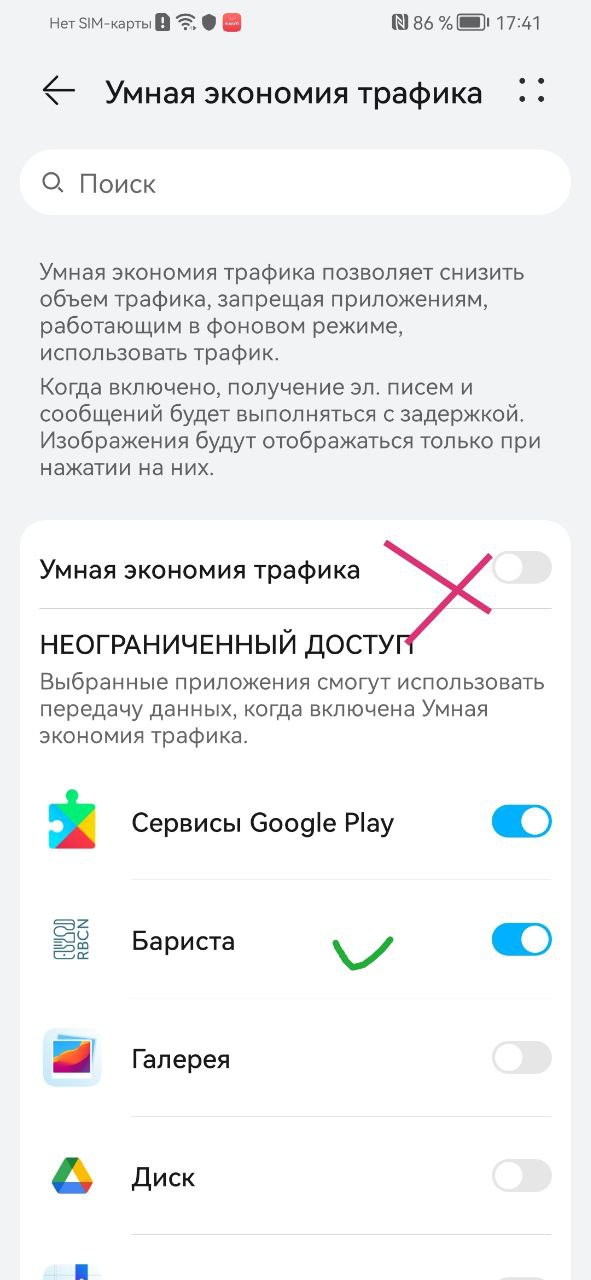
- Settings → “Mobile Network” or “Network & Internet”
- Review the settings (these screens may vary across devices)
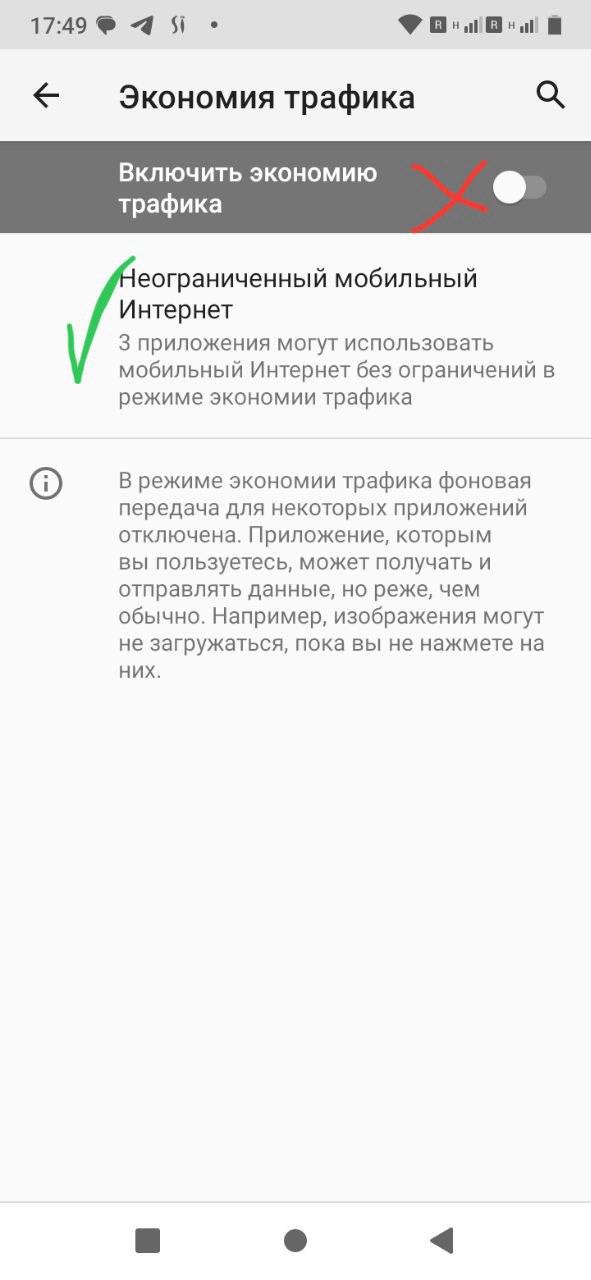
- Make sure data saver is disabled and that “Barista” has unrestricted access if such an option is available.
Alternative example of the same setting🔗
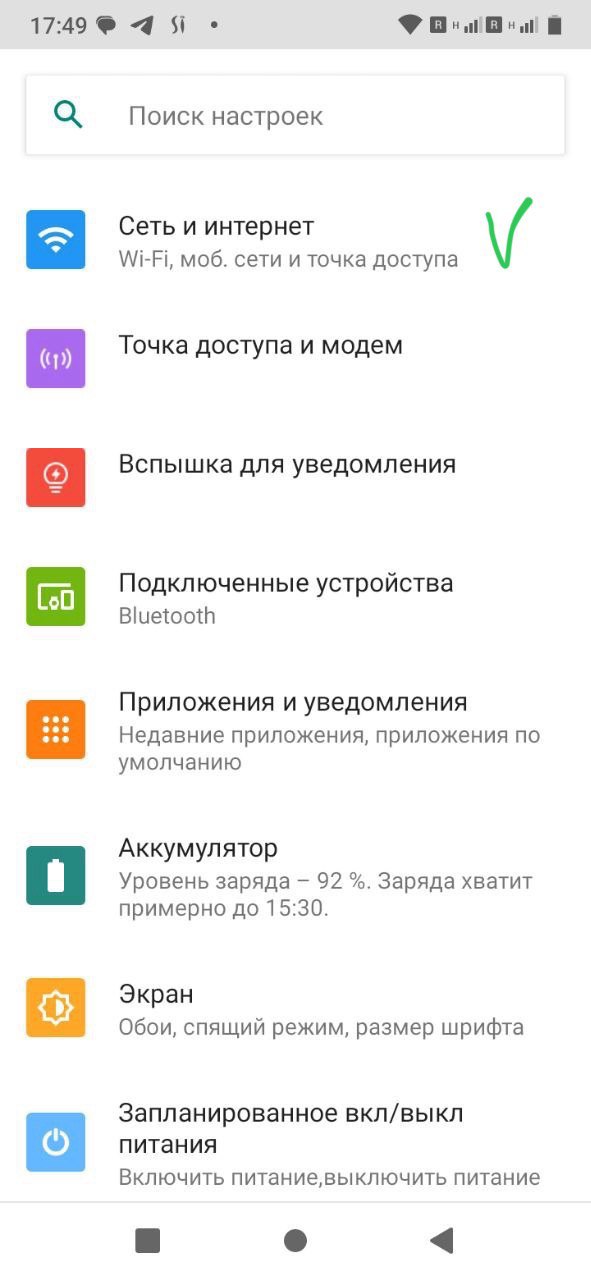
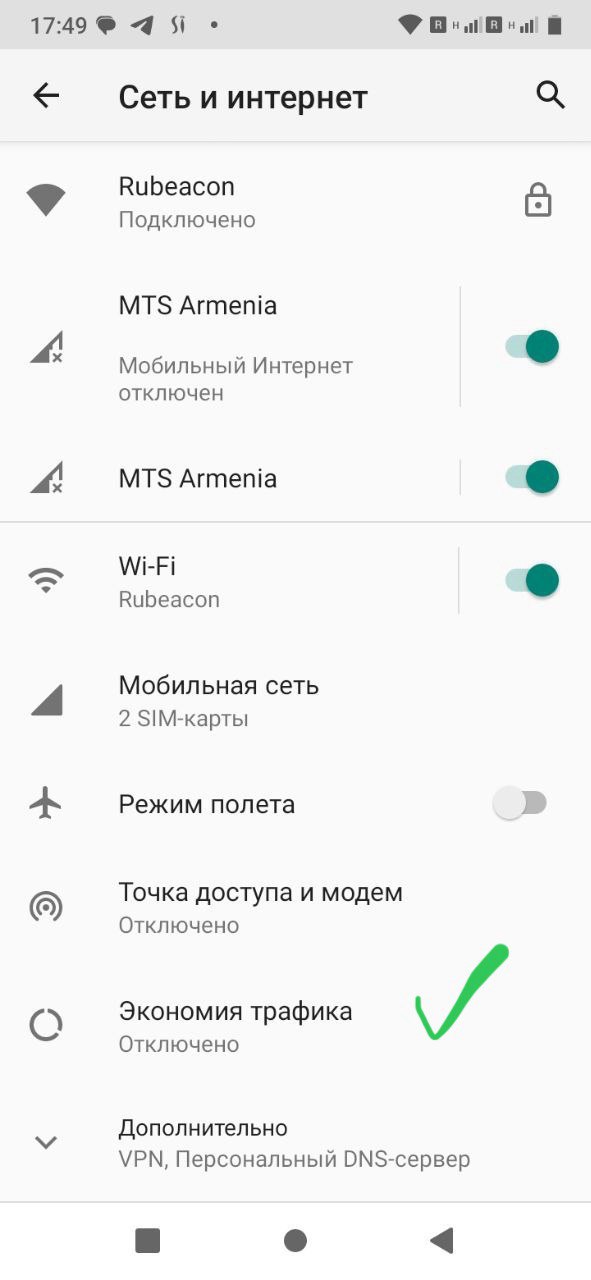
💡 4. Display and brightness🔗
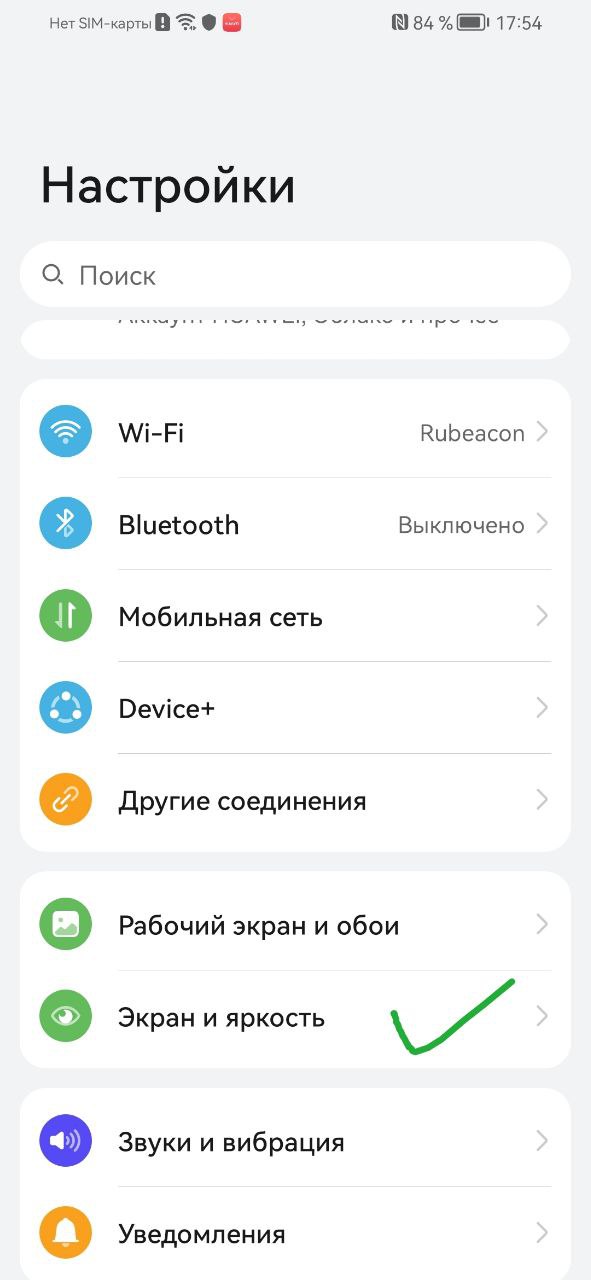
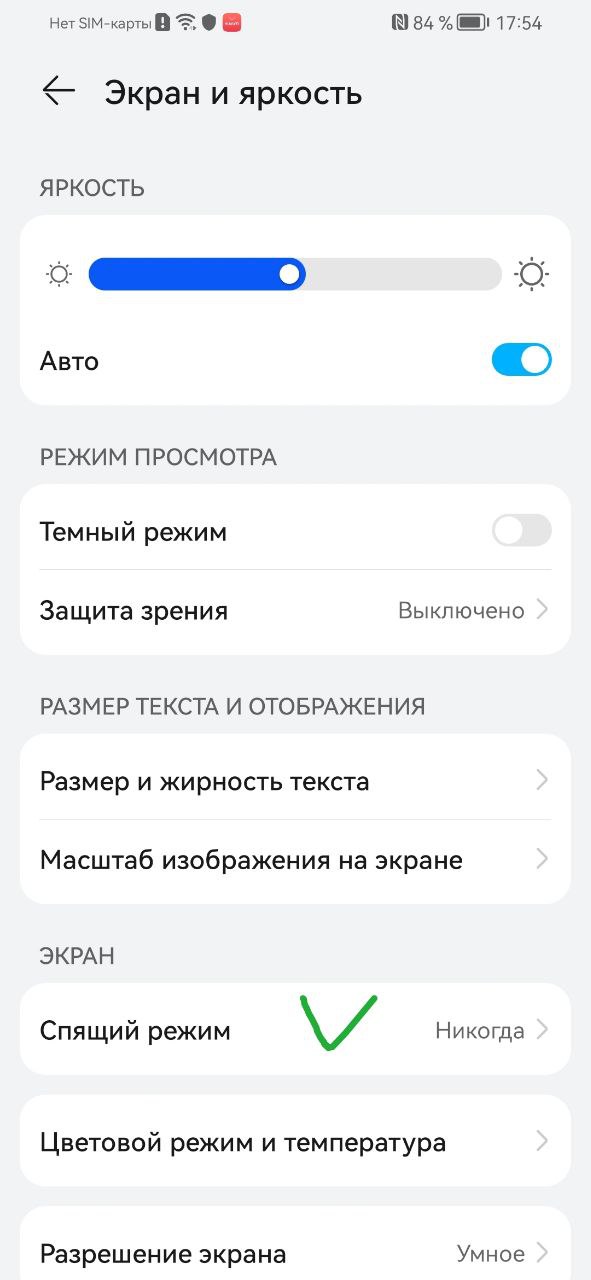
- Settings → “Display and brightness”
- Make sure the device does not enter sleep mode automatically
Alternative example of the same setting🔗
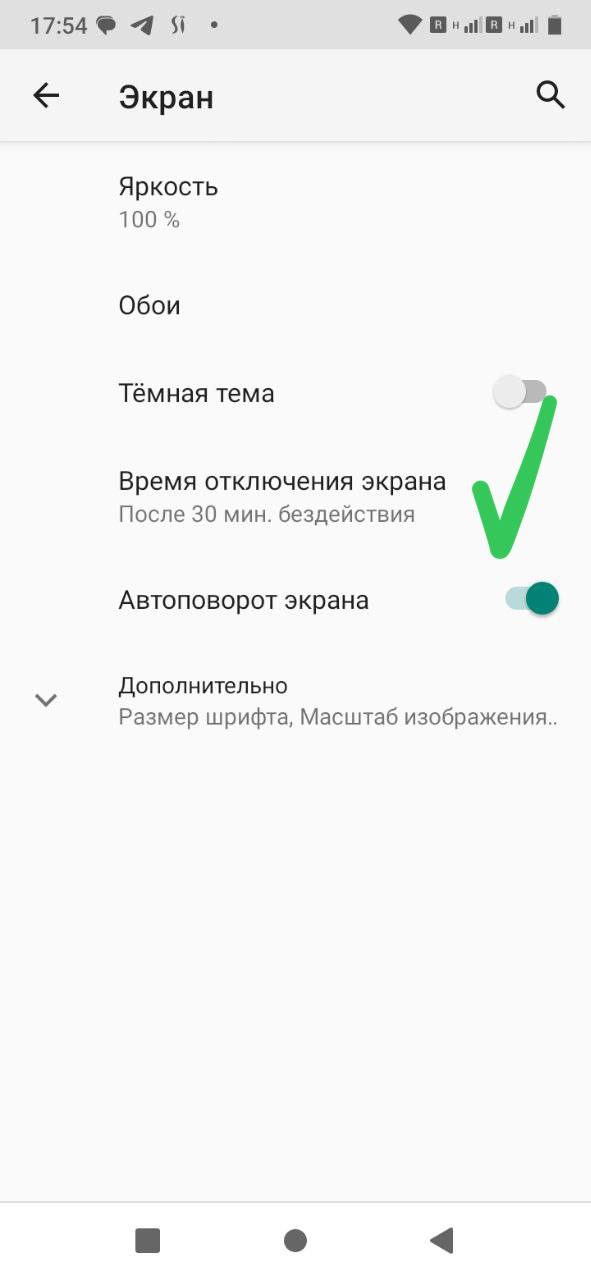
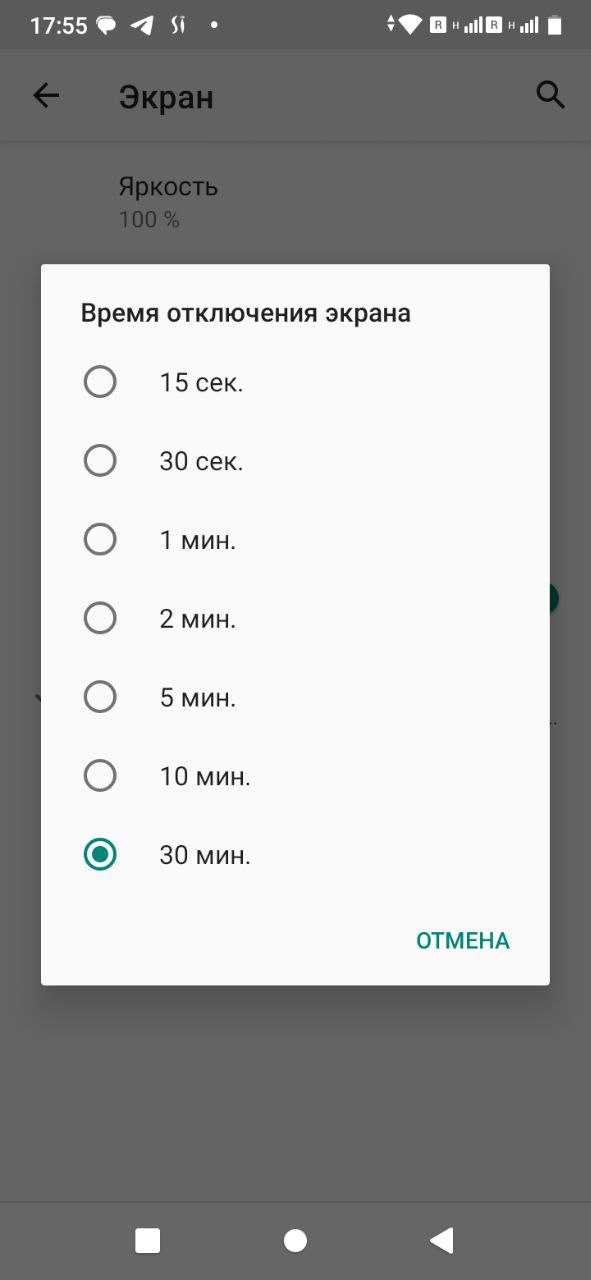
- Settings → “Display” (if sleep mode cannot be disabled completely)
- Set the screen timeout to the maximum available duration
📝 Note🔗
On your device, some section names may differ. We also recommend checking the application’s internal settings.
This can be done via Settings → Applications, or by long-pressing the app icon (not available on all devices):
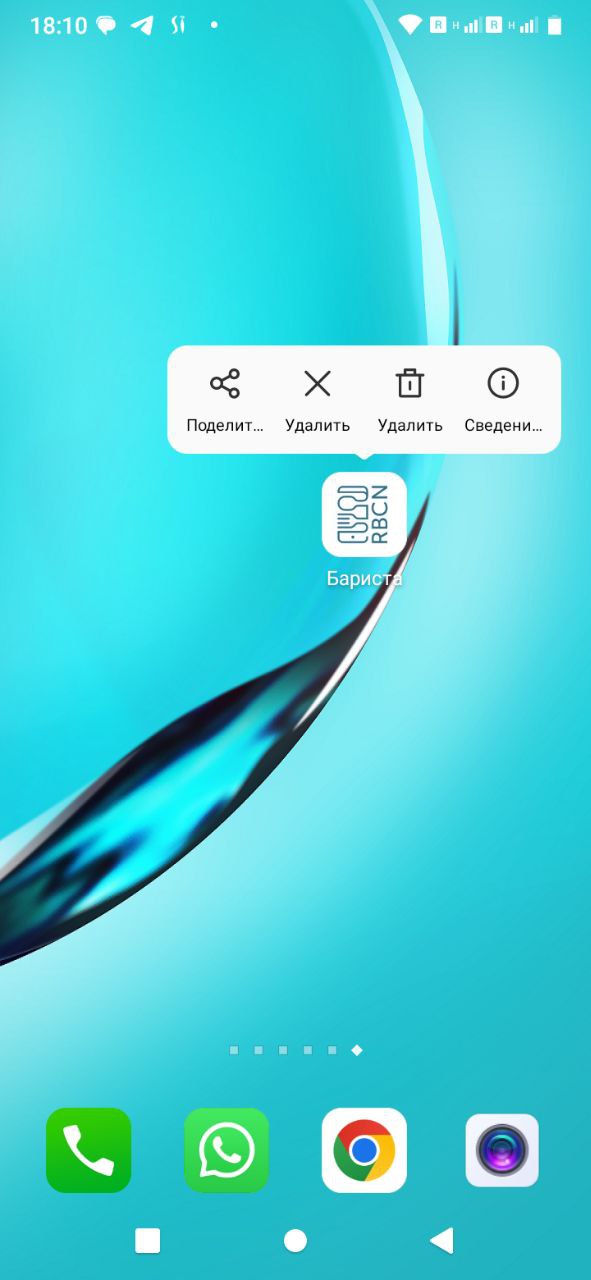
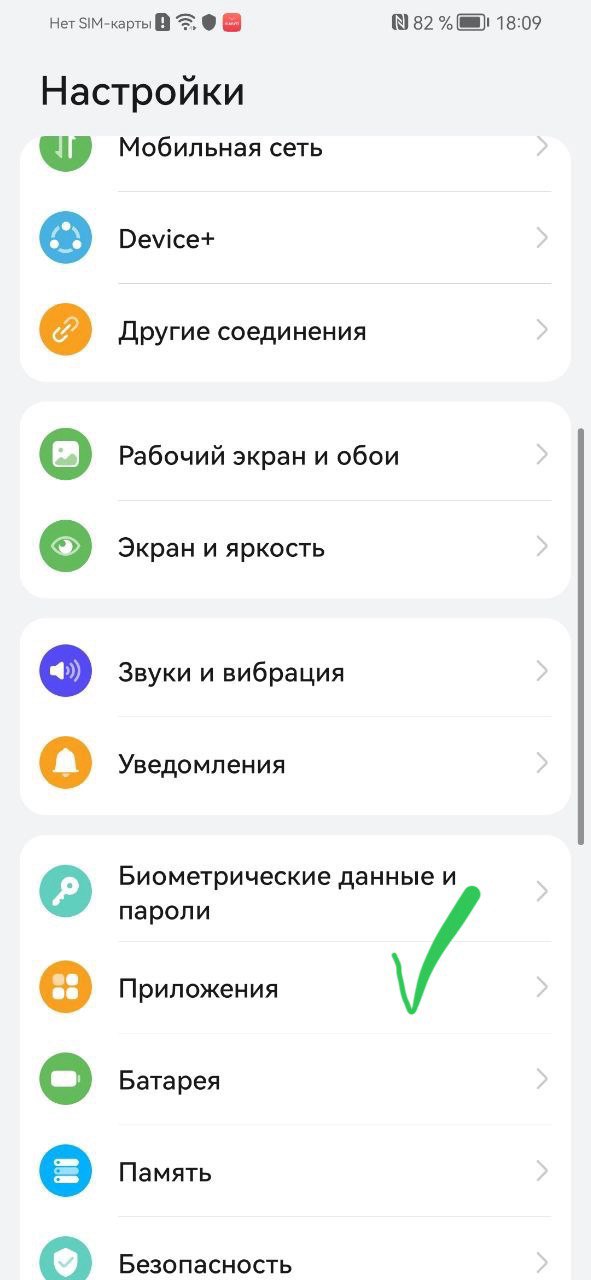
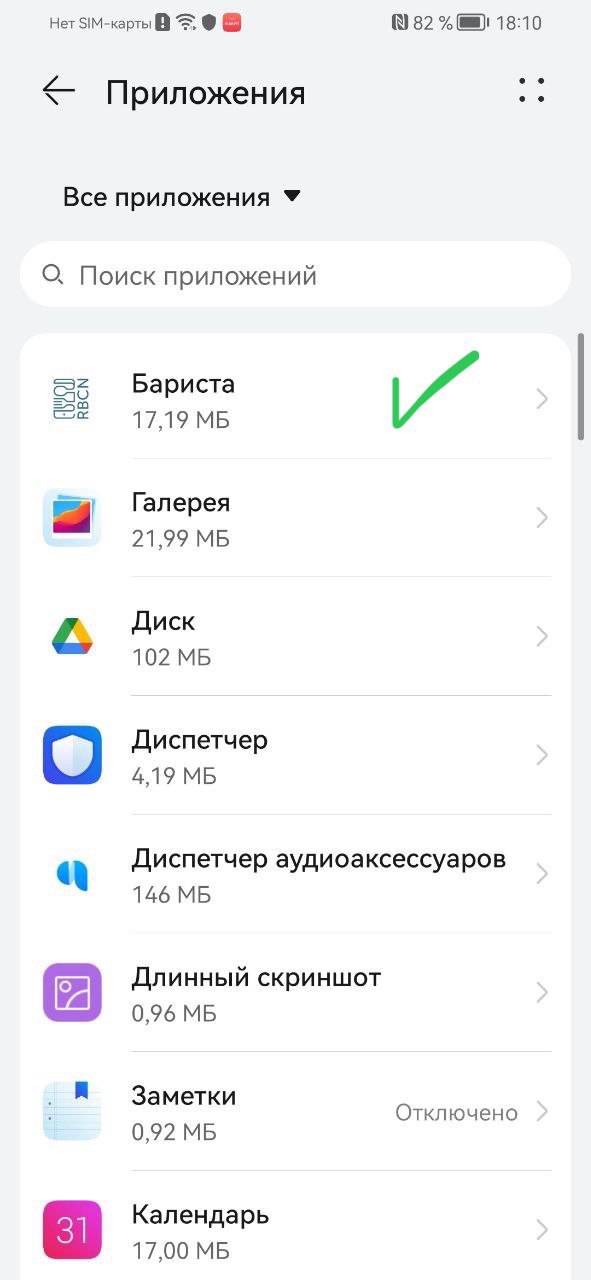
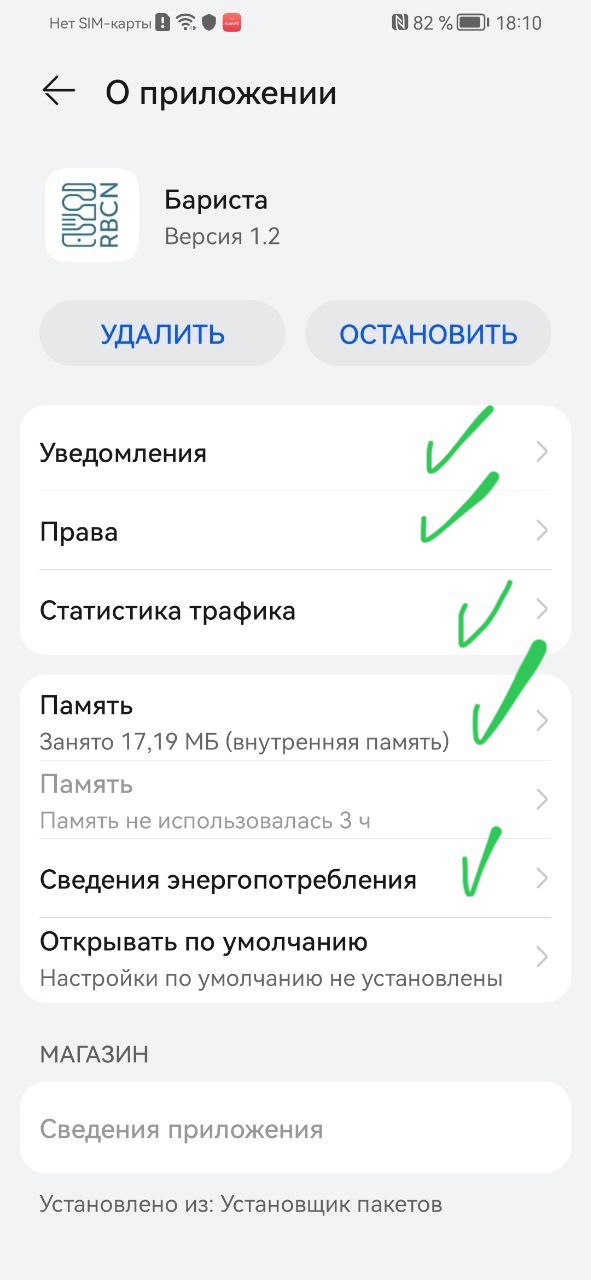
- You can open settings by long-pressing the app icon
- Or via “Settings” → “Applications”
- Select “Barista”
- Review all battery, memory, notification, and network settings.