📧 Setting Up Email Filters for Receiving Orders🔗
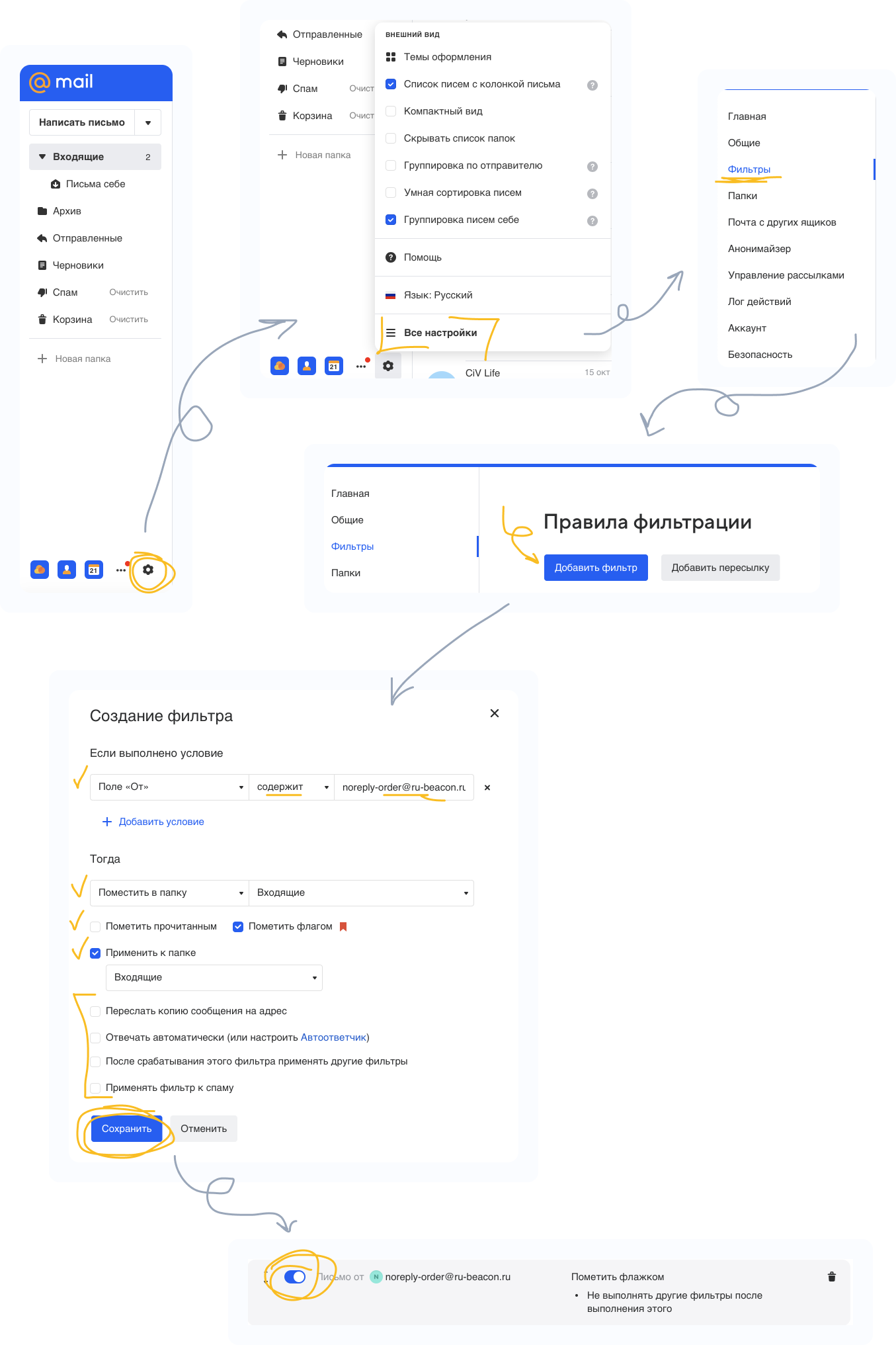
📮 Mail.ru🔗
1 - Click ⚙️ (Settings)
2 - In the opened menu, select All settings
3 - In the side menu, select Filters
4 - On the opened page, click Add filter
The filter creation window will open
5 - In the filter conditions, set From → Contains
6 - Enter the email address from which orders are received:
noreply-order@ru-beacon.ru
You may need to create 2 filters ‼️
Second email:
noreply@rbcn.tech
7 - In filter actions, select Move to Inbox
8 - Uncheck “Mark as read” (if already unchecked — leave it)
9 - Check “Mark with flag”
10 - Check Apply to Inbox folder
11 - Uncheck all other options
12 - Click Save
13 - Make sure the filter has been successfully created
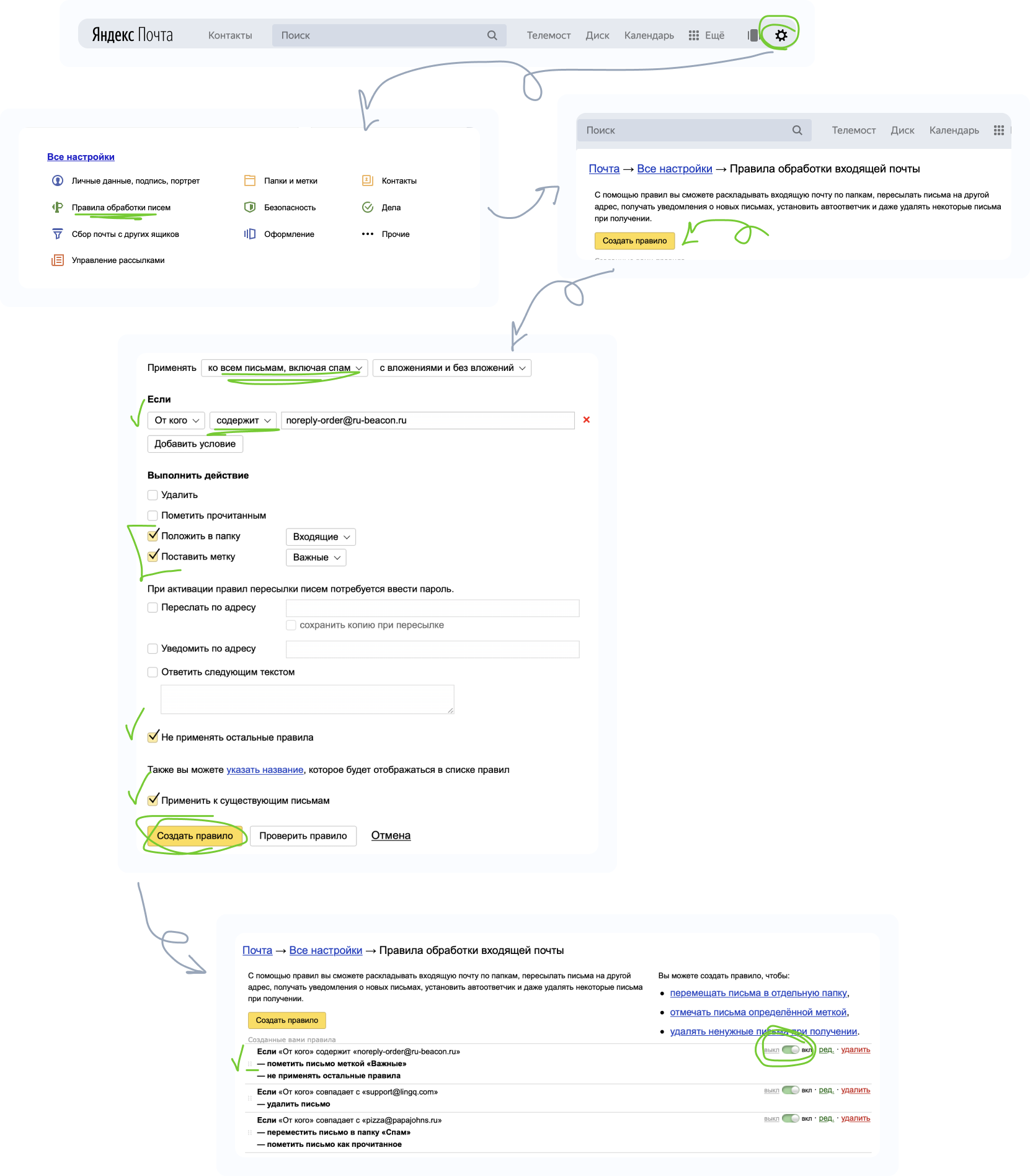
✉️ YandexMail🔗
1 - Click ⚙️ (Settings)
2 - Select Mail processing rules
3 - Click Create rule
The filter creation window will open
4 - Select Apply to all emails, including spam
5 - In filter conditions select: From → Contains
6 - Enter the email address from which orders are received:
noreply-order@ru-beacon.ru
You may need to create 2 filters ‼️
Second email:
noreply@rbcn.tech
7 - Check Move to folder → Inbox
8 - Check Mark as important
9 - Check Do not apply other filters
10 - Check Apply to existing emails
11 - Click Save
12 - Make sure the filter is created and placed first in the list
13 - Make sure the filter is enabled
14 - If the filter is not first, drag it to the top using the icon on the left
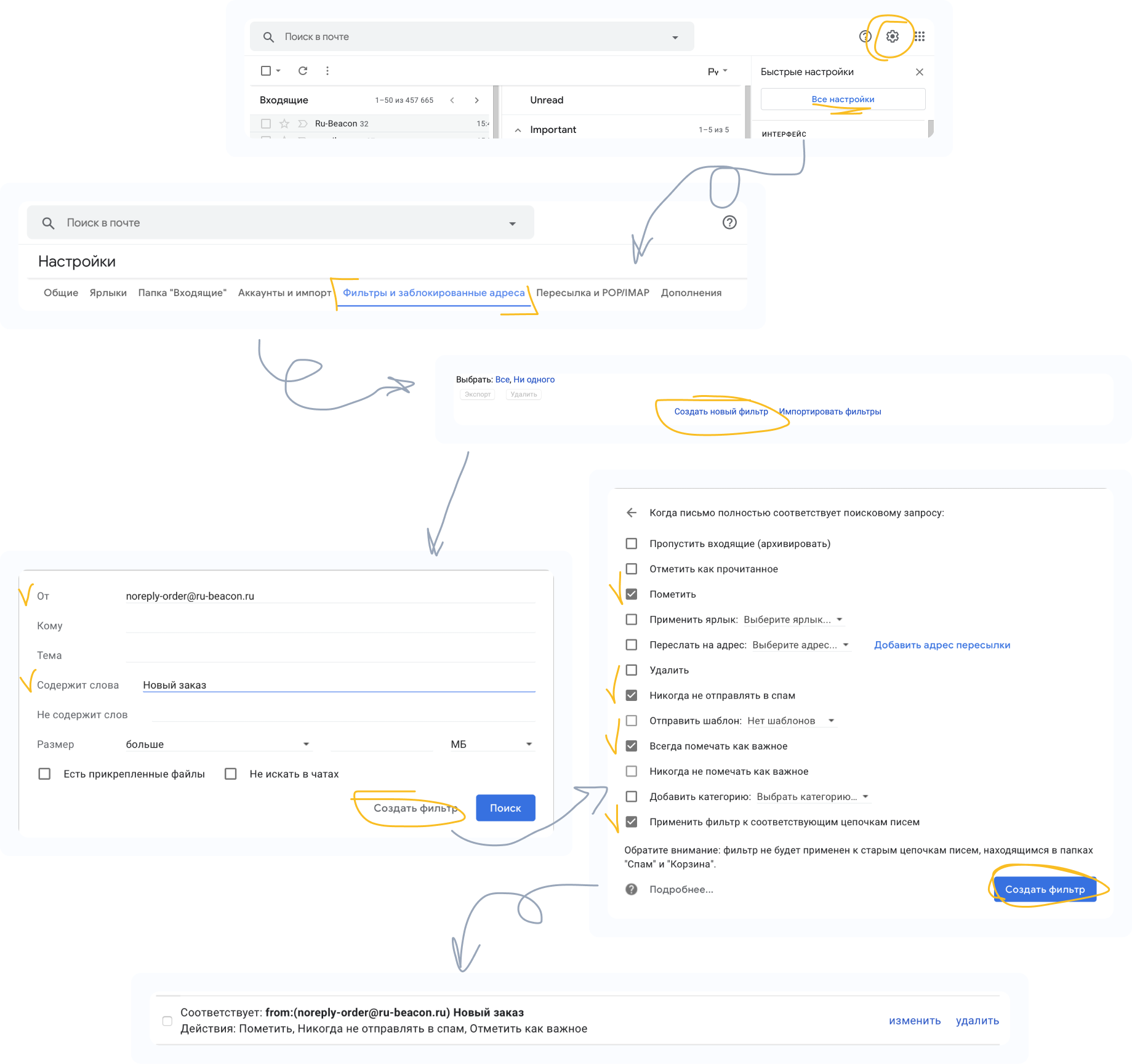
📧 Gmail🔗
1 - Click ⚙️ (Settings)
2 - Select See all settings
3 - Go to Filters and blocked addresses
4 - Scroll down and click Create a new filter
The filter creation window will open
5 - In the From field enter:
noreply-order@ru-beacon.ru
You may need to create 2 filters ‼️
Second email:
noreply@rbcn.tech
6 - In the Has the words field enter: New order
7 - Click Create filter
The filter action window will open
8 - Check Star it
9 - Check Never send it to Spam
10 - Check Always mark as important
11 - Check Also apply filter to matching conversations
12 - Click Create filter
13 - Make sure the filter appears in the list
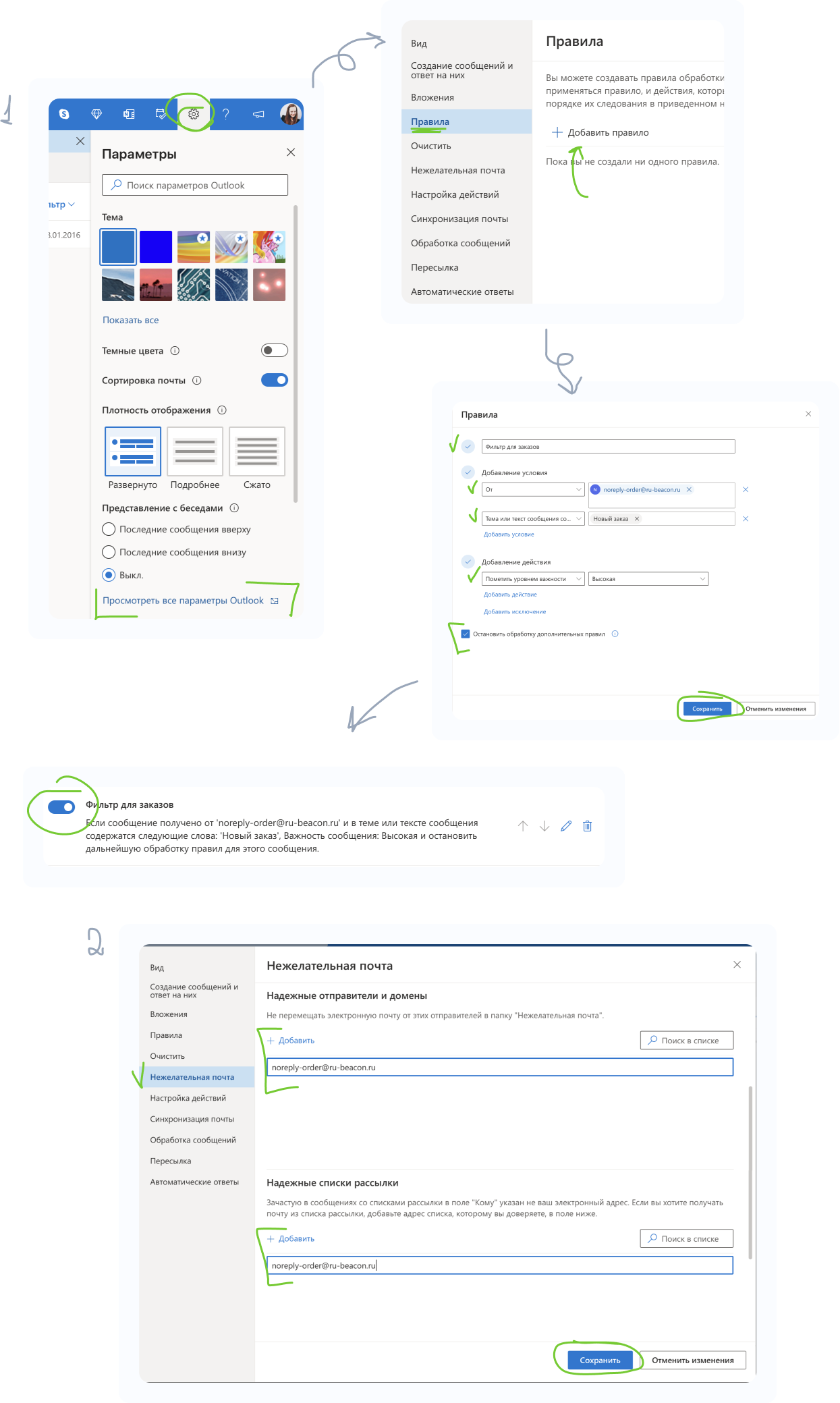
📨 Outlook🔗
1 - Click ⚙️ (Settings)
2 - Select View all Outlook settings
3 - Go to Rules
4 - Click Add new rule
The rule setup window will open
5 - In the Rule name field enter: Order filter
6 - Click Add a condition
7 - Select From and enter:
noreply-order@ru-beacon.ru
You may need to create 2 filters ‼️
Second email:
noreply@rbcn.tech
8 - Click Add a condition
9 - Select Subject or body includes
Enter: New order
10 - Click Add an action
11 - Select Mark with importance → High
12 - Check Stop processing more rules
13 - Click Save
14 - Make sure the filter is created
Go to the Junk email section
1 - Under Safe senders and domains, click Add
2 - Add:
noreply-order@ru-beacon.ru
and
noreply@rbcn.tech
Press Enter
3 - Click Save
4 - Under Safe mailing lists, click Add
5 - Add the same email addresses again and press Enter
6 - Click Save