📰 News Banners in the App: Why They Matter and How to Set Them Up🔗
1️⃣ Why do you need news banners?🔗
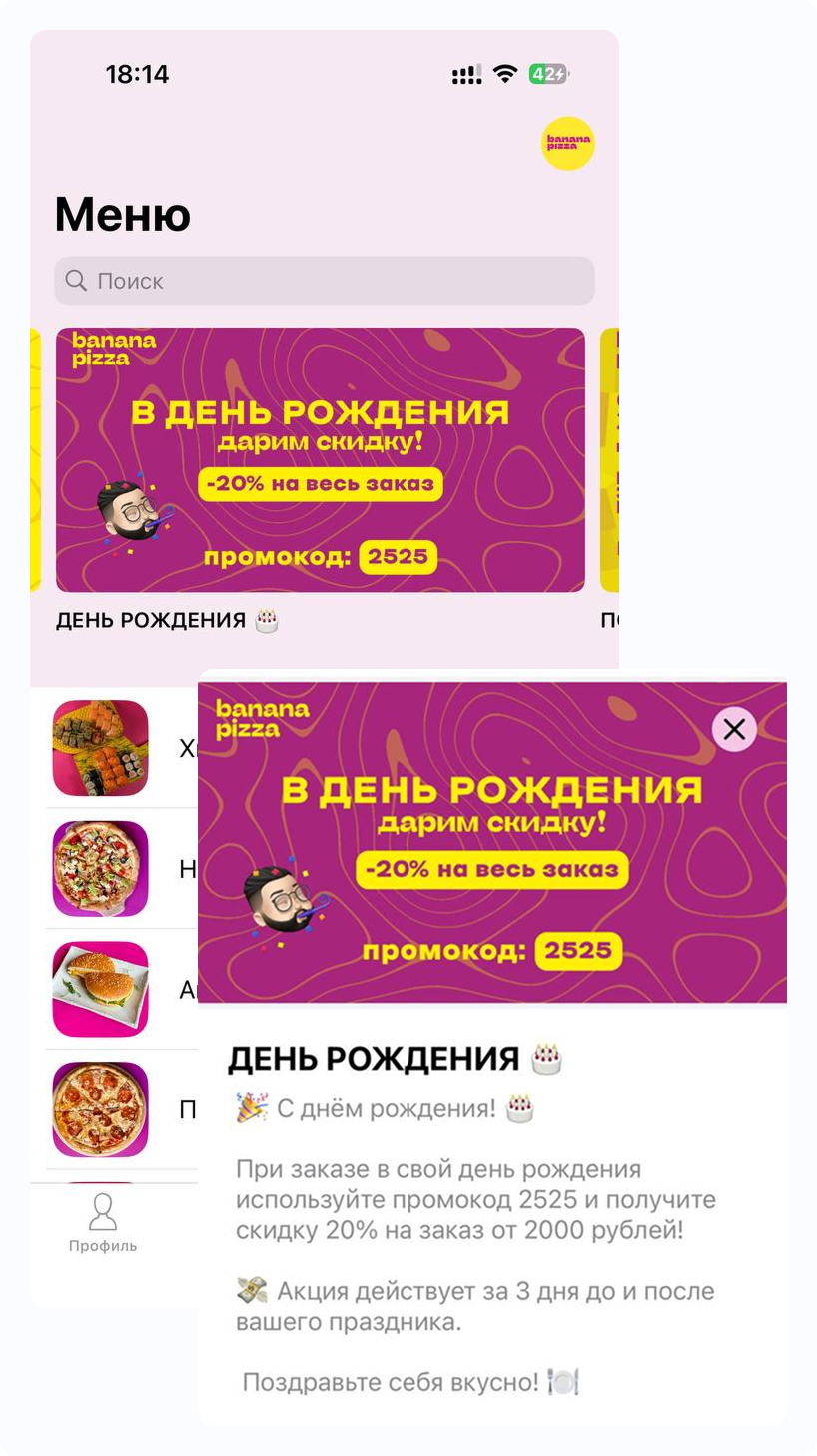
News banners are blocks displayed at the top of the menu on the app’s main screen.
They help you inform your guests about:
- new and active promotions;
- changes in restaurant working hours during holidays;
- any other important information.
In numbers 📈 News banners increase engagement in promotions by at least 10%, and in some cases growth reaches 30%!
2️⃣ How to set up a news banner🔗
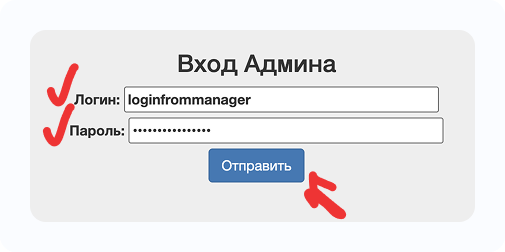
1 - Go to 👉 🗂 Личный кабинет (Admin panel)
2 - Enter your login and password (provided by your manager)
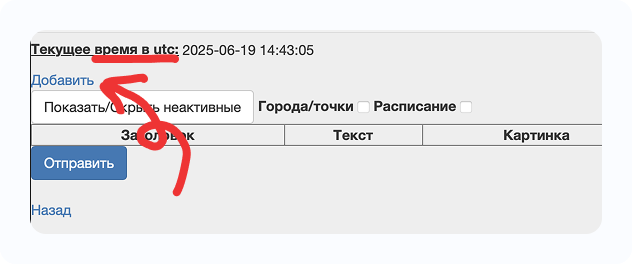
3 - Go to the Новости (News) section
On the screen you will see a list of:
- all published banners;
- banners that have been unpublished.
Note ⚠️ The line “Текущее время в UTC (Current time in UTC)” will be useful when setting the banner display time.
3️⃣ Creating a new banner🔗
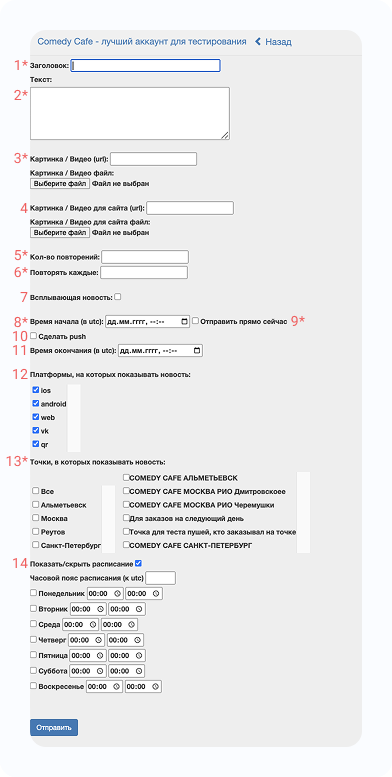
4 - Click Добавить (Add) → the banner creation/edit window will open.
5 - Fill in the fields:
- Заголовок (Title)* — short text (10–20 characters), displayed under the banner and used as the push title.
-
Текст (Text)* — shown when the banner is opened and also used as the push text.
Tip ❔ Do not overload the text — users don’t like long paragraphs.
-
Картинка (Image)* — the banner image displayed in the app.
App size ⚠️ 960×516 px
We do not recommend placing too much text on the banner — it will be hard to read on small screens.
-
Картинка для сайта (Website image) — the banner image displayed on the website.
Website size ⚠️ 1200×530 px
You can place more text here since it is easier to read on larger screens.
-
Количество повторений (Number of repetitions)* — how many times the banner will be shown to one user.
Recommended: 1000000 (to display it always) ❔
-
Повторять каждые (Repeat every) — set to 1* (show on every app launch).
- Всплывающая новость (Popup news) — enable this option if you want the banner to open automatically when the app launches.
-
Время начала (в UTC) (Start time in UTC)* — specify when the banner should start being displayed.
Time format ⚠️
Time must be in UTC format
Check the time difference here: https://24timezones.com/ru/difference -
Отправить прямо сейчас (Send immediately) — check this if you want to publish the banner right away.
In this case, the Время начала (Start time)* field does not need to be filled in.
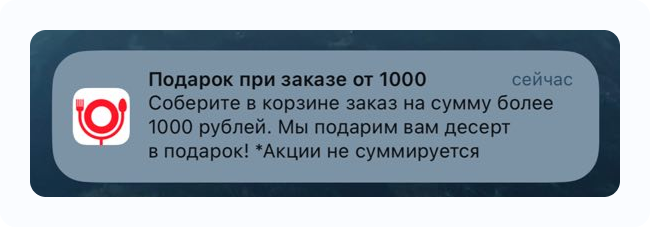
- Сделать push (Send push) — enable this option to send a push notification when creating the banner.
The banner title and text will be used in the push notification.
- Время окончания (End time) — specify if you want the banner to be automatically unpublished.
- Платформы (Platforms) — choose where the banner should be displayed.
- Точки (Venues) — select which restaurant locations the banner should apply to.
- Показать расписание (Show schedule) — configure banner display by schedule (for example, dessert discount after 19:00).
If not needed — uncheck this option. - When everything is filled in, click Отправить (Submit)
4️⃣ Final steps🔗
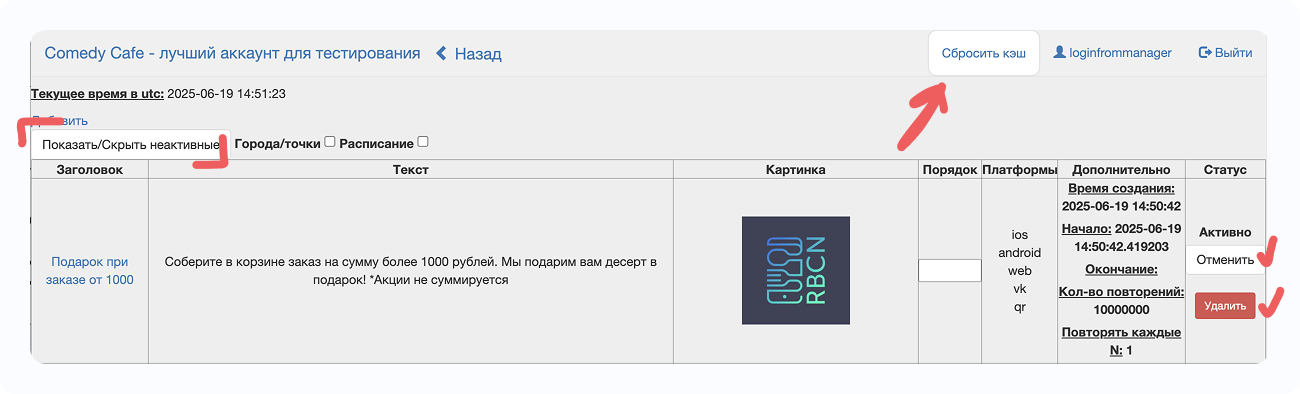
✅ Banners can be unpublished or deleted using the corresponding buttons.
✅ Click Сбросить кэш (Clear cache) at the top of the page — this is required for the changes to appear in the app.
✅ After clearing the cache, the system will redirect you to the main page of the admin panel.
✅ Restart the app and check the result.
Important ⚠️ If an error occurs while creating a banner — contact your manager.