🛑 How to temporarily suspend order acceptance🔗
Sometimes you may need to temporarily pause order acceptance — for example, if the kitchen is overloaded or technical issues have occurred.
1️⃣ How to pause order acceptance via the admin panel🔗
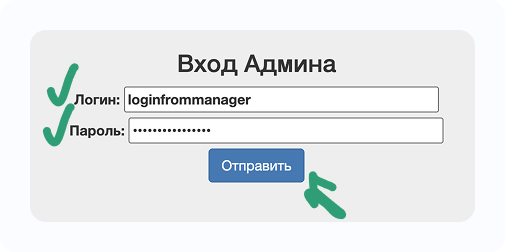
- Go 👉 🗂 to the Admin Panel
- Enter your login and password (provided by your manager)
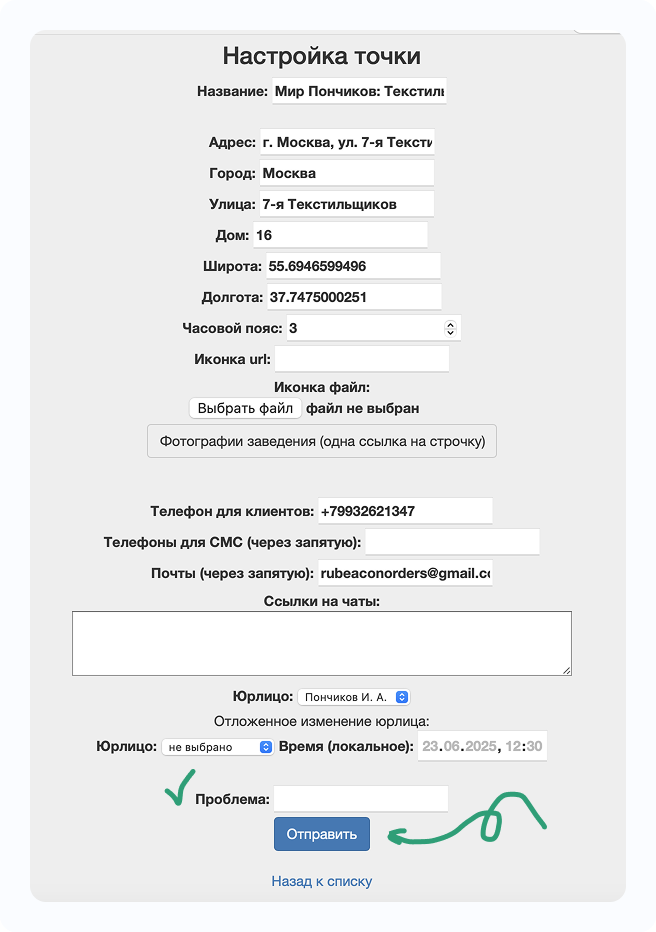
- Go to the Точки (Venues) section
- Click on the name of the required restaurant
- In the Проблема (Issue) field, enter the message that users will see
- Click the Отправить (Submit) button
📌 Here are examples of messages you can use:
- We are temporarily not accepting orders 🙏
- Order acceptance is paused, we’ll be back soon! 🚀
- The kitchen is overloaded, please try again later 🍳💨
- Temporarily closed, thank you for your understanding ❤️
- Order acceptance is unavailable, we are already resolving the issue ⚙️💡
- The kitchen is taking a short break 😌 Please come back later!
- Order acceptance is paused — we’ll be happy to see you again soon! 🤗
- Orders are temporarily unavailable, but we’re preparing to welcome you soon! 🍽️
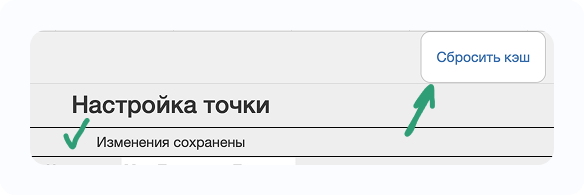
- When the message «Изменения сохранены» (Changes saved) appears, click Сбросить кэш (Clear cache)
- You will be redirected to the admin panel homepage
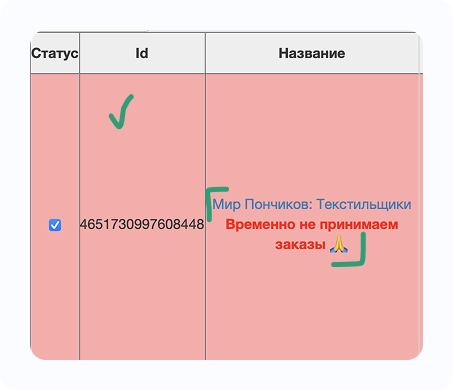
To make sure everything worked correctly:
- Go again to Точки (Venues)
- You will see the venue highlighted in red
- The message from the Проблема (Issue) field will be displayed
- Orders in the app will no longer be available
2️⃣ How to enable order acceptance again🔗
- Log in to the admin panel
- Go to the Точки (Venues) section
- Click on the restaurant name
- In the Проблема (Issue) field, delete the text (leave it empty)
- Click Отправить (Submit)
- Wait for the message «Изменения сохранены» (Changes saved) and click Сбросить кэш (Clear cache)
- Check: in Точки (Venues) the red highlight and message should disappear → order acceptance is available again
3️⃣ How to pause or activate order acceptance via Telegram bot🔗
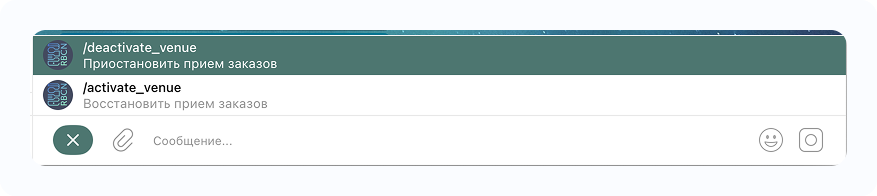
- Open the chat with the bot that sends notifications about new orders
- Click Menu next to the input field
- Select the command /deactivate_venue
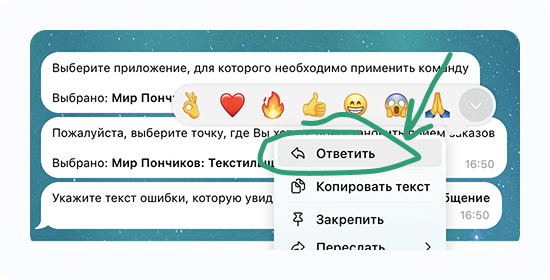
- Answer the bot’s questions by selecting the suggested buttons
- ⚠️ Important ⚠️ In reply to the bot’s request, type the error message that users will see and send it
✅ To enable order acceptance again:
Use the command /activate_venue and follow the bot’s instructions by selecting the appropriate buttons (to activate the venue)
4️⃣ If something goes wrong🔗
If you are unable to pause/enable order acceptance or another urgent issue occurs — contact our support immediately:
👉 https://t.me/RBCNbot